

- Introduction
- Best Online Audio Converter Tools for M4A to MP3
- Quick Comparison Table
- Can You Convert M4A to MP3 Without Losing Quality?
- Why Online Audio Converters Are Becoming the Default
- Detailed Reviews: Best Online Audio Converter Tools
- How to Convert M4A to MP3 Without Noticeable Quality Loss
- Choosing the Right Online Audio Converter for Your Needs
- Online vs Desktop Audio Converter: Which Should You Choose?
- FAQ
- Conclusion
6 Best Online Audio Converter Tools for M4A to MP3 in 2026
Introduction
M4A files are common on iPhones, Apple Music exports, voice memos, podcast clips, and mobile recordings. They often sound good, but they are not always easy to upload, edit, or play across different platforms.
MP3 is still the safer choice when compatibility matters. It works with more media players, websites, editing tools, car systems, and everyday devices. The challenge is choosing a free online audio converter that can convert M4A to MP3 without making the file sound dull, noisy, or over-compressed.
In this guide, we compare six online audio converter tools for converting M4A to MP3, focusing on quality, ease of use, batch support, settings, and real-world workflow value.
Best Online Audio Converter Tools for M4A to MP3
- AudioConvert
- CloudConvert
- Zamzar
- Convertio
- WaveSpeed
- Movavi Online
Quick Comparison Table
| Tool | Best For | Key Strength | Main Limitation |
|---|---|---|---|
| AudioConvert | Large files and batch conversion | 450+ formats, 4 GB upload, editing tools | Not a full professional audio editor |
| CloudConvert | Advanced output control | Strong quality and file size settings | More technical for beginners |
| Zamzar | Simple one-off conversion | Very easy workflow | Less ideal for heavy batch work |
| Convertio | Cloud-based conversion | Local, URL, Google Drive, Dropbox upload | Large-file use may be limited |
| WaveSpeed | Privacy-focused conversion | Local browser processing | Depends on device performance |
| Movavi Online | Beginner-friendly conversion | Simple UI and bitrate adjustment | The online version is lighter than the desktop software |
👉 Quick recommendations:
Want the best overall online audio format converter? → AudioConvert.
Want advanced output settings? → CloudConvert.
Want the simplest one-file conversion? → Zamzar.
Can You Convert M4A to MP3 Without Losing Quality?
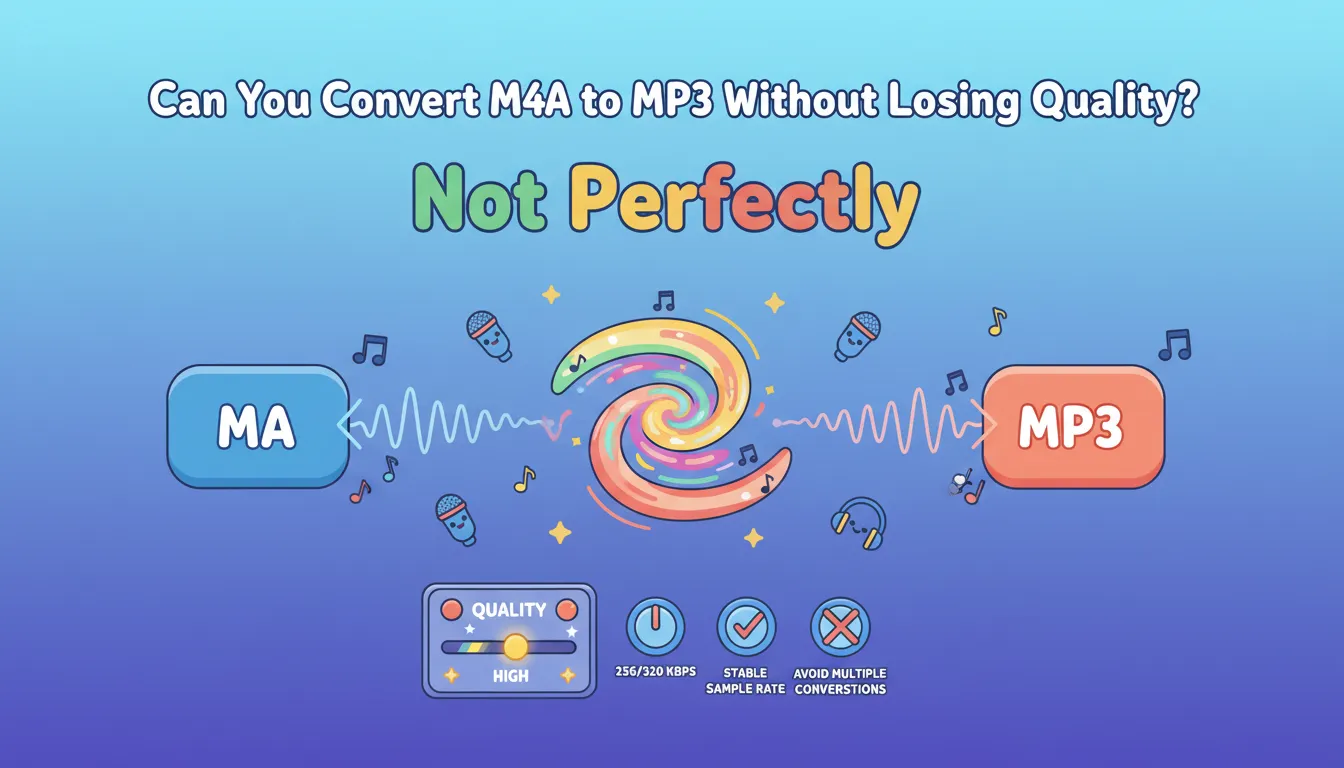
Not perfectly.
M4A is often used with AAC audio, while MP3 is also usually a lossy format. When you convert M4A to MP3, the file is typically re-encoded. That means a perfect 1:1 conversion is not realistic.
But that is not what most users actually need. The real goal is to avoid noticeable quality loss. For most music, voiceovers, interviews, podcasts, lectures, and short clips, a high-bitrate MP3 can sound very close to the original M4A file.
A good audio converter should let you choose quality settings instead of forcing a low-quality default. For cleaner output, use 256 kbps or 320 kbps when available, keep the sample rate stable, and avoid converting the same file multiple times.
Why Online Audio Converters Are Becoming the Default
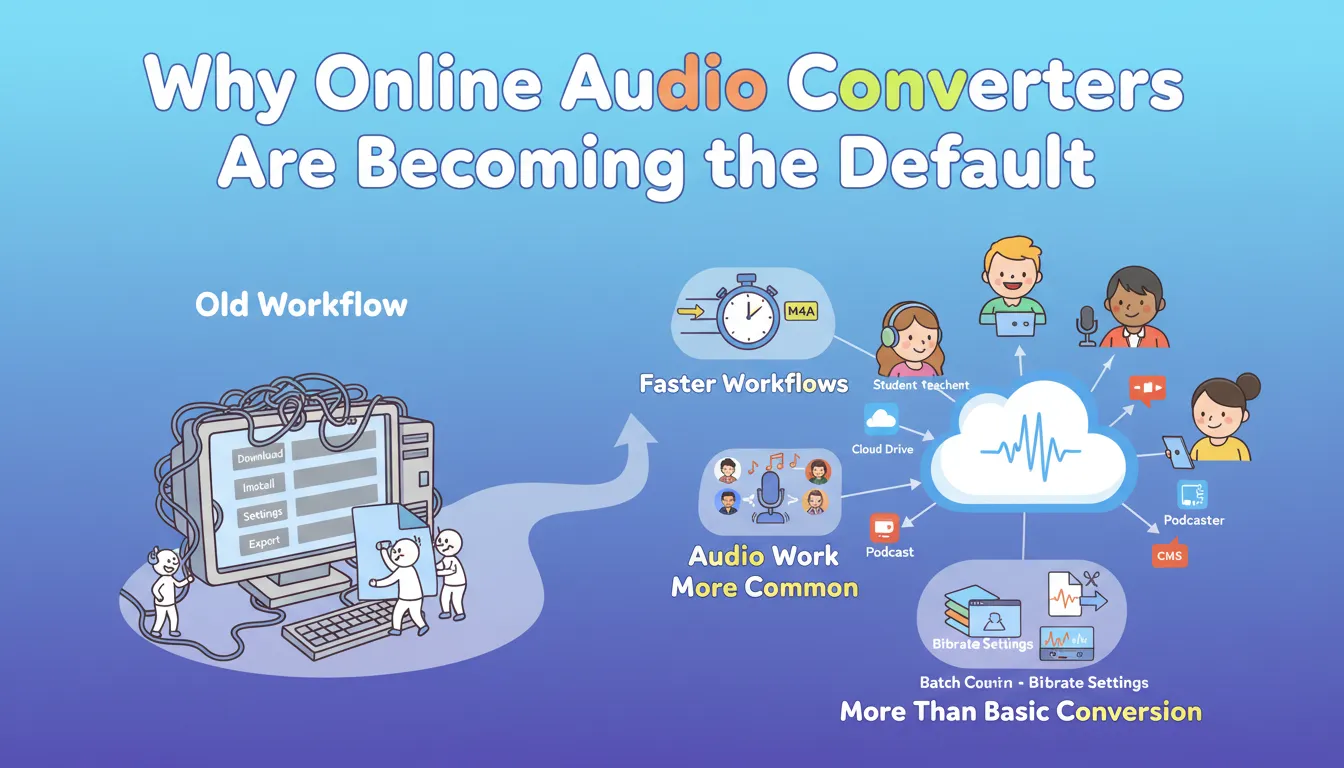
Audio conversion used to feel like a desktop task. You had to download software, install codecs, import files, choose settings, export, and check the result.
That workflow is changing. More users now want browser-first tools because their files come from many places: phones, cloud drives, meeting platforms, podcast editors, video tools, and content management systems.
Three trends are pushing online audio converter tools forward:
- Users want faster workflows. They do not want to install software just to convert one M4A file.
- Audio work is becoming more common. Creators, students, marketers, teachers, podcasters, and business teams all handle recordings more often than before.
- Users need more than basic conversion. Batch conversion, large file support, bitrate settings, and simple editing tools now matter more because real audio workflows are rarely just “upload and download.”
Detailed Reviews: Best Online Audio Converter Tools
1. AudioConvert — Best Overall Free Online Audio Converter for M4A to MP3
Overview
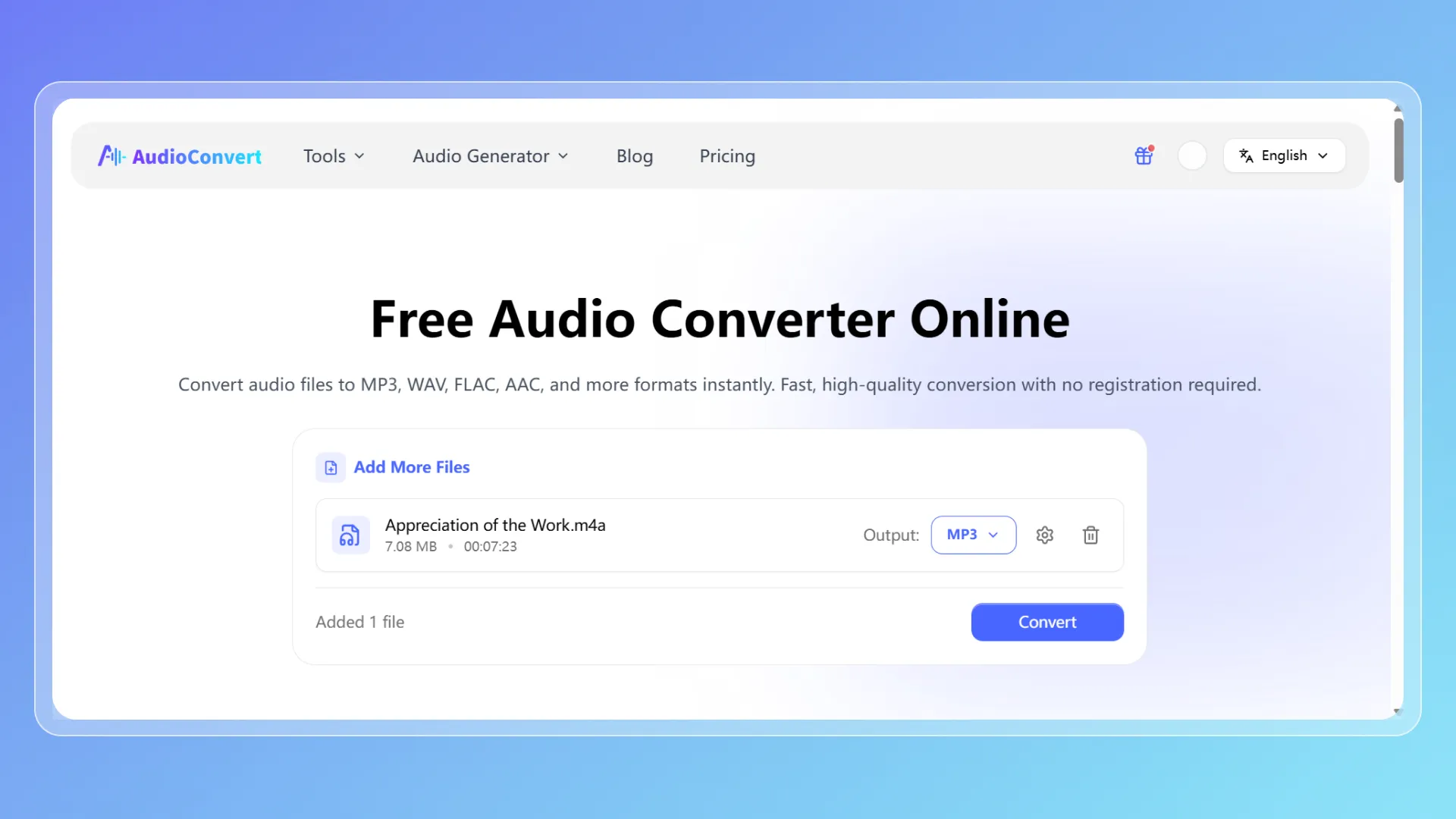
AudioConvert is the best overall choice if you want a free M4A to MP3 converter that does more than basic upload-and-download conversion. It is an online audio converter built for format conversion, batch processing, large files, and simple audio editing in one browser-based workflow.
AudioConvert supports 450+ audio format conversions, so you can convert M4A to MP3 and also work with formats like WAV, FLAC, AAC, OGG, WMA, AIFF, and APE when needed. You can upload files directly in the browser, adjust output settings, and download the final file without installing software.
Key Features
AudioConvert supports M4A to MP3 conversion, batch audio conversion, and large file uploads up to 4 GB. It also includes useful audio adjustments such as codec selection, volume control, fade in, fade out, audio reverse, and start-position trimming.
That matters because M4A to MP3 conversion is often not just a one-step task. Maybe the recording is too quiet. Maybe the first few seconds need to be removed. Maybe you have several lecture files, podcast clips, voice notes, or client recordings to process at once. In those cases, AudioConvert gives you a more complete workflow than a simple one-file converter.
Pros
AudioConvert works well for large audio files, batch tasks, and users who want light editing before export. It is especially useful for content creators, students, marketers, podcast editors, teachers, and business users who convert audio files regularly.
Cons
AudioConvert is not a professional DAW. If you need multi-track editing, mastering, noise restoration, or detailed waveform editing, desktop software will still be more suitable.
Best For
AudioConvert is best for users who want a free online audio converter for M4A to MP3, especially when batch conversion, large-file support, output settings, and basic editing tools matter.
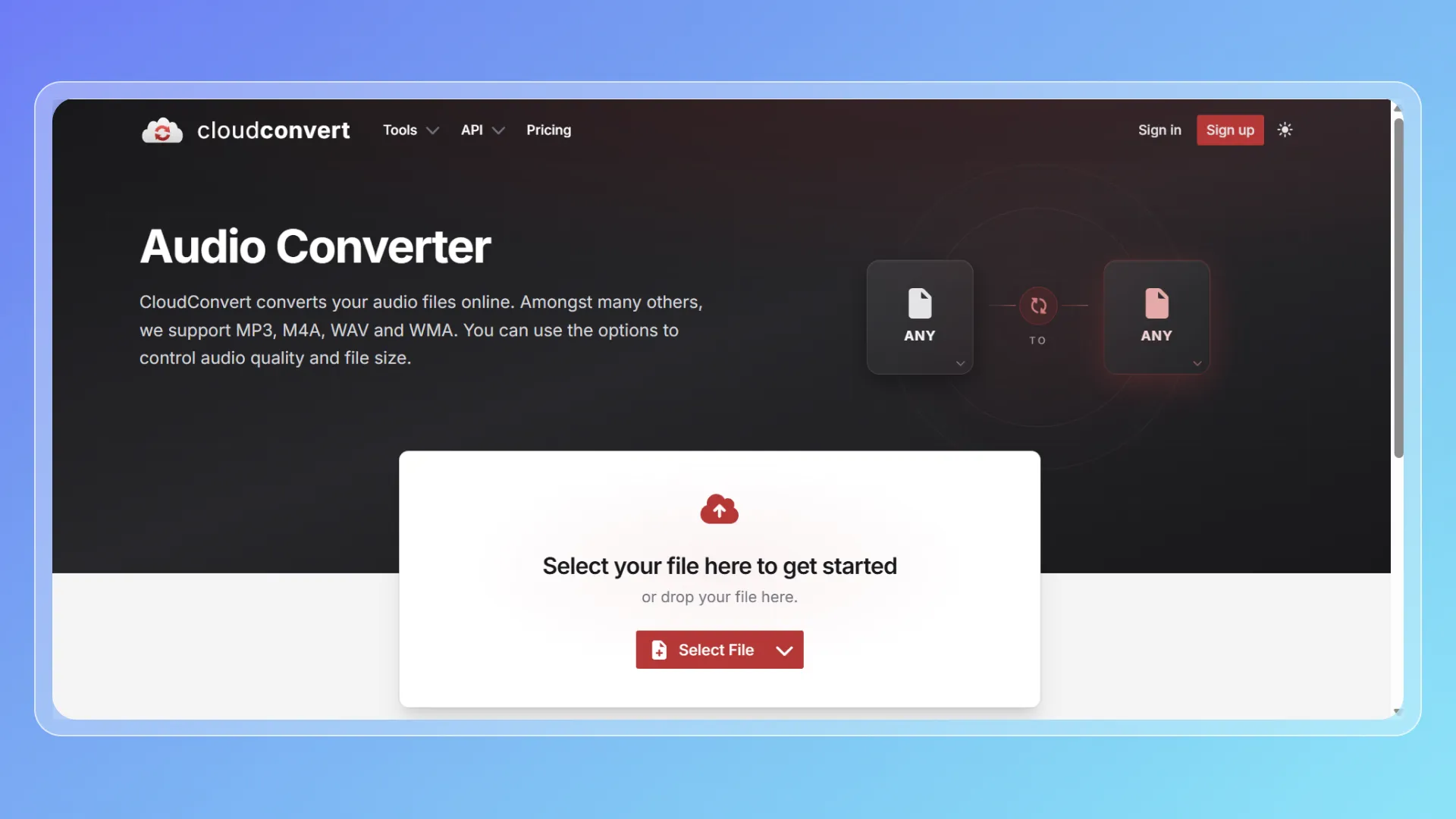
2.CloudConvert — Best for Advanced Output Control
Overview
CloudConvert is a well-known online conversion platform for users who want more control over output settings. Its M4A to MP3 converter supports common audio formats and lets users adjust options related to quality and file size.
Key Features
CloudConvert allows users to upload M4A files, choose MP3 as the output format, and fine-tune conversion settings. It also supports many other file types, so it is useful for people who need a general file conversion tool beyond audio.
Pros
CloudConvert is strong when you care about bitrate, codec behavior, and output size. It feels reliable and technical in a good way.
Cons
The interface may feel slightly more complex for beginners who only want a quick one-click conversion.
Best For
CloudConvert is best for users who want an audio converter with more control over quality and file size.
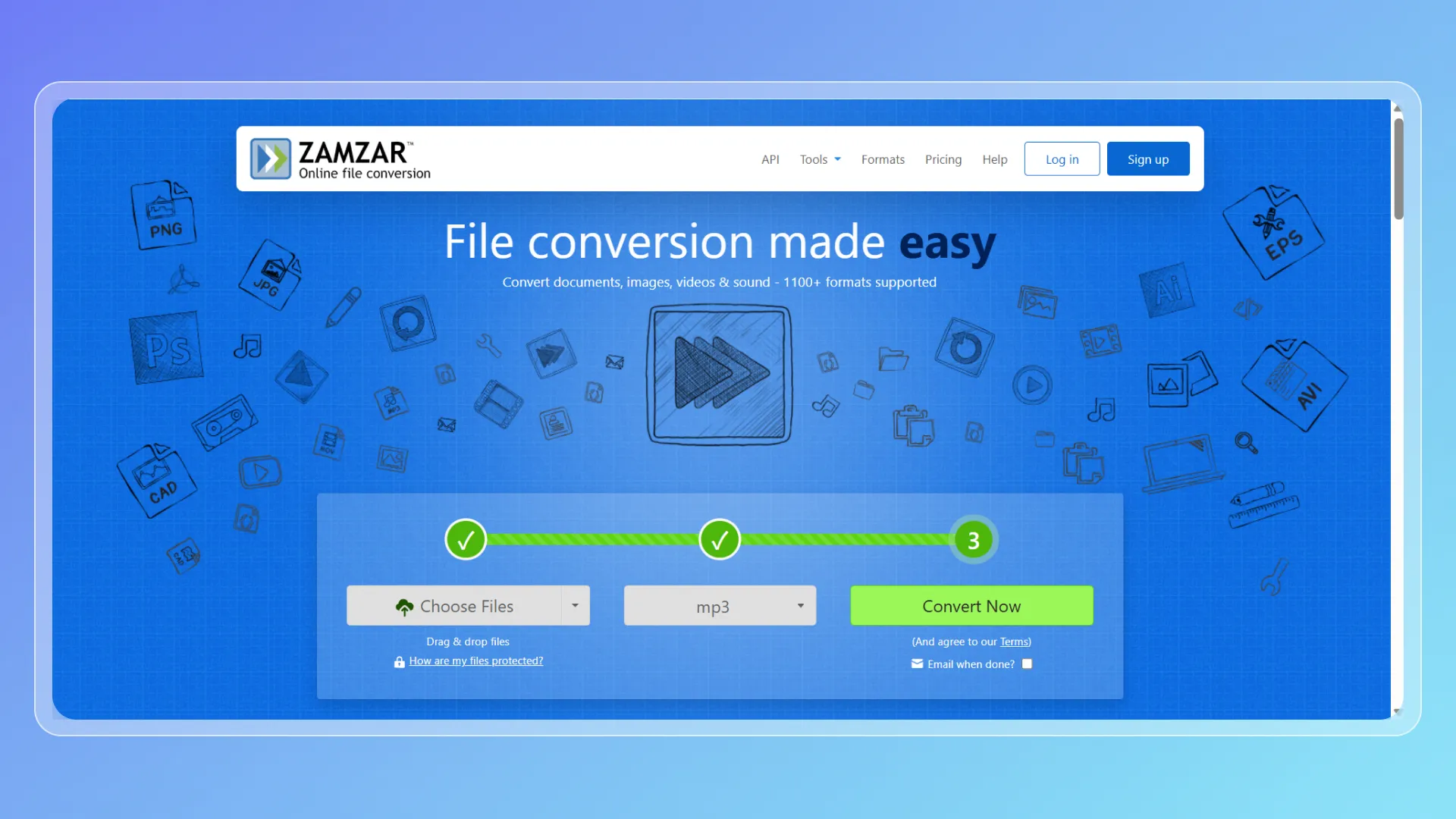
3.Zamzar — Best for Simple One-Off M4A to MP3 Conversion
Overview
Zamzar is built for simplicity. The workflow is easy to understand: upload your file, choose the output format, convert, and download.
Key Features
Zamzar supports M4A to MP3 conversion and offers basic output settings such as bitrate and sample rate. It is also a broad file conversion platform, covering documents, images, videos, and audio files.
Pros
Zamzar is easy for casual users. It does not make the process feel technical, which is useful when you only need to convert one file quickly.
Cons
It is less suitable for heavy workflows. If you need batch processing, large files, repeated settings, or basic editing, Zamzar may feel limited.
Best For
Zamzar is best for occasional users who want a simple M4A to MP3 converter without learning audio settings.
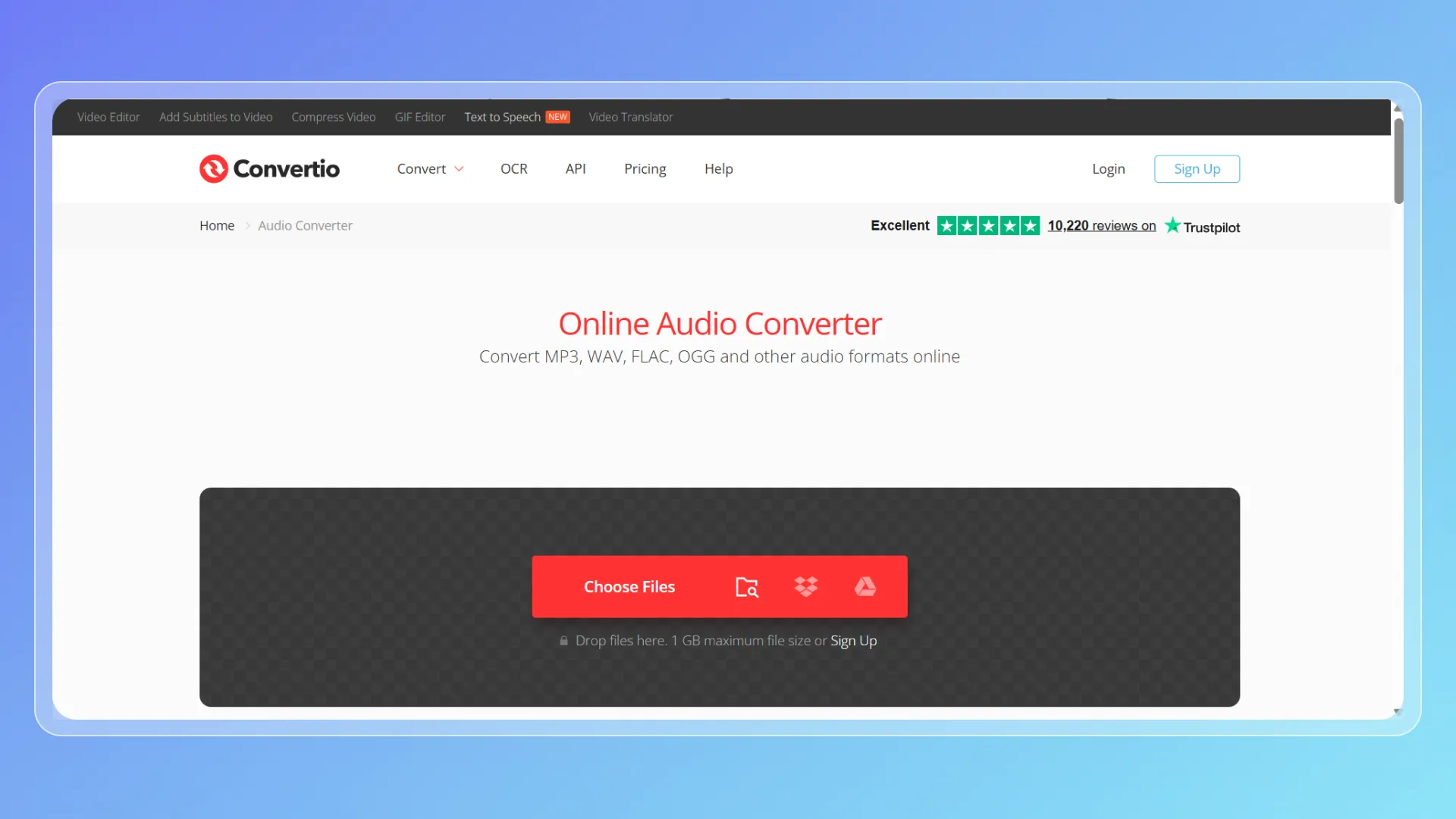
4.Convertio — Best for Cloud-Based M4A to MP3 Conversion
Overview
Convertio is a fast browser-based converter with a smooth upload flow. It works well when your files are stored in different places, not just on your computer.
Key Features
Convertio lets users upload from a local device, URL, Google Drive, Dropbox, or a drag-and-drop interface. It also provides basic quality settings such as bitrate, sample rate, and audio channels.
Pros
Convertio feels quick and convenient. The cloud import options are useful for users who manage files across different platforms.
Cons
Convertio is mainly a conversion tool, not a complete audio workspace. If you need large-file support or more editing options, AudioConvert may be a better fit.
Best For
Convertio is best for users who want a simple online audio converter with flexible upload options.
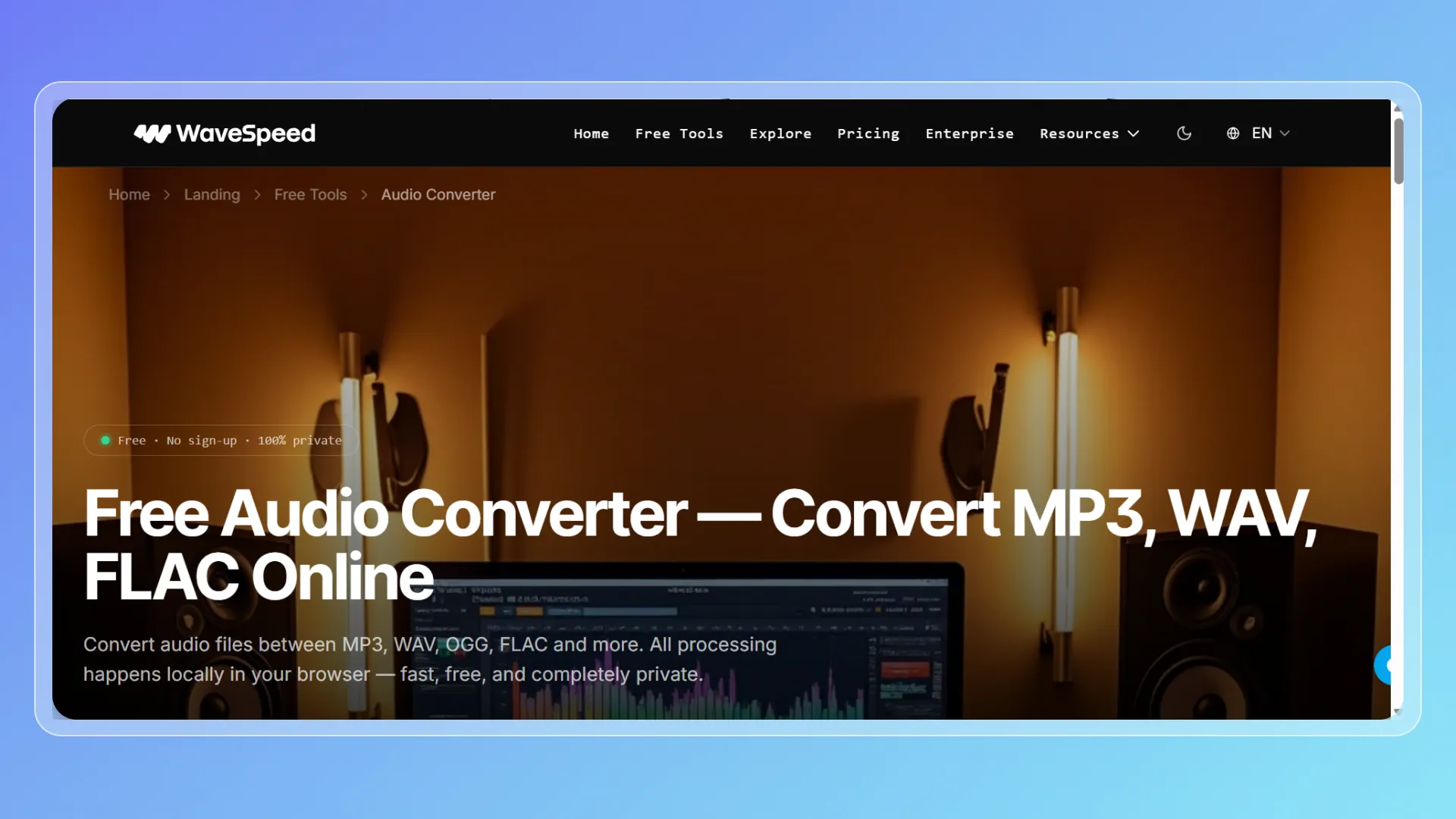
5.WaveSpeed — Best for Privacy-Focused Browser Conversion
Overview
WaveSpeed is useful for users who care about privacy. Its audio converter focuses on browser-based processing, which can be appealing when you do not want to send files through a traditional upload-and-process workflow.
Key Features
WaveSpeed supports common audio formats and local browser conversion. This makes it suitable for personal files, private recordings, or users who prefer a lightweight browser-first tool.
Pros
WaveSpeed’s privacy angle is clear. It is a good option for users handling voice notes, internal files, unpublished clips, or other recordings they prefer to keep local.
Cons
Because processing depends more on the browser and device, performance may vary with large files.
Best For
WaveSpeed is best for users who want a privacy-focused online audio converter for smaller or moderate-sized files.
6.Movavi Online — Best Beginner-Friendly Audio Converter
Overview
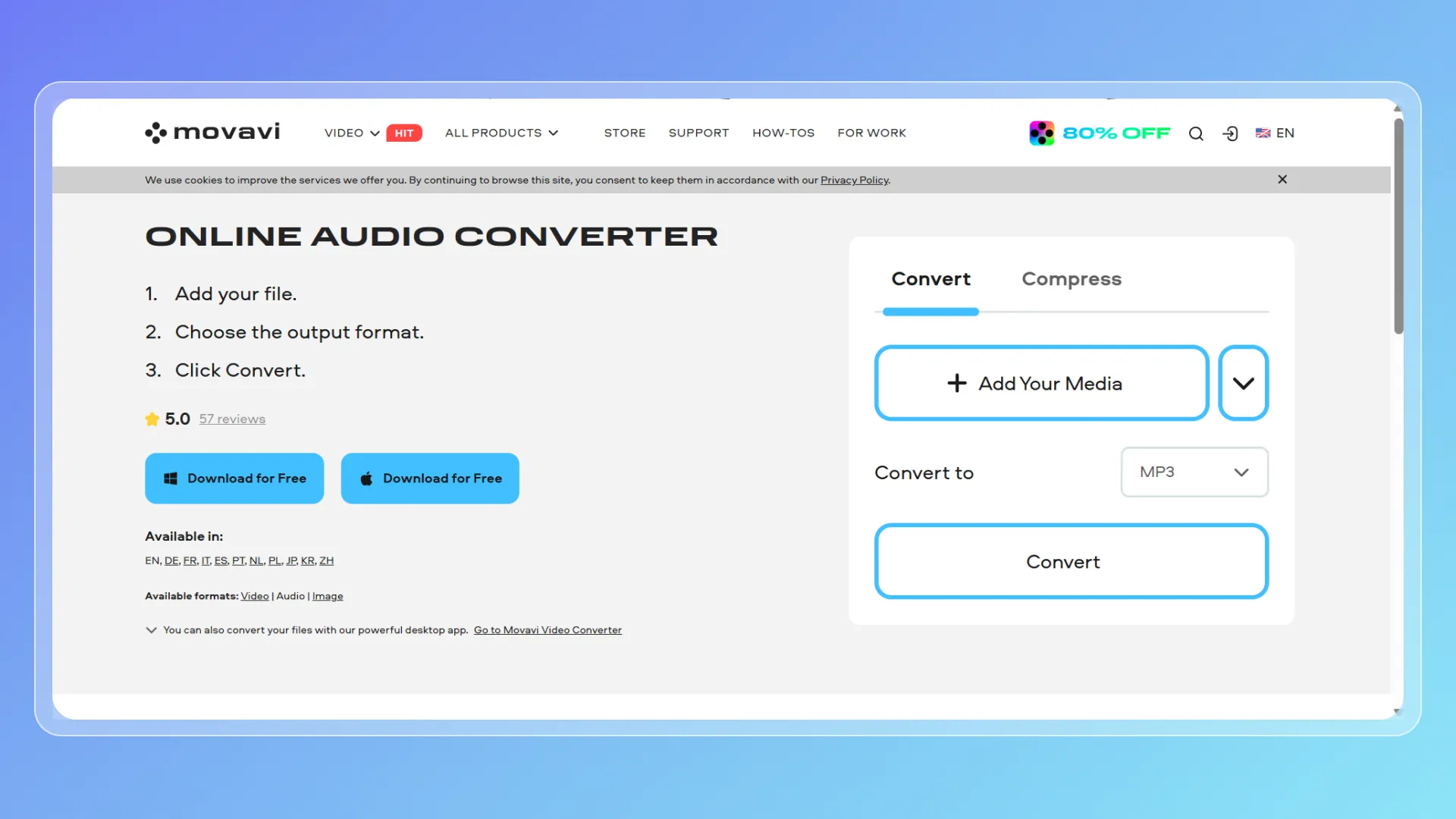
Movavi Online is a simple choice from a familiar media software brand. It is designed for users who want to convert audio without dealing with a complicated interface.
Key Features
Movavi Online supports browser-based audio conversion and bitrate adjustment. The workflow is easy to follow and works well for basic M4A to MP3 tasks.
Pros
Movavi Online is beginner-friendly. It is a comfortable option for users who already know Movavi from video editing or media conversion.
Cons
The online version is lighter than desktop software. For deeper settings, large-scale batch conversion, or more editing tools, other options may be stronger.
Best For
Movavi Online is best for beginners who want a simple M4A to MP3 converter with basic quality control.
How to Convert M4A to MP3 Without Noticeable Quality Loss
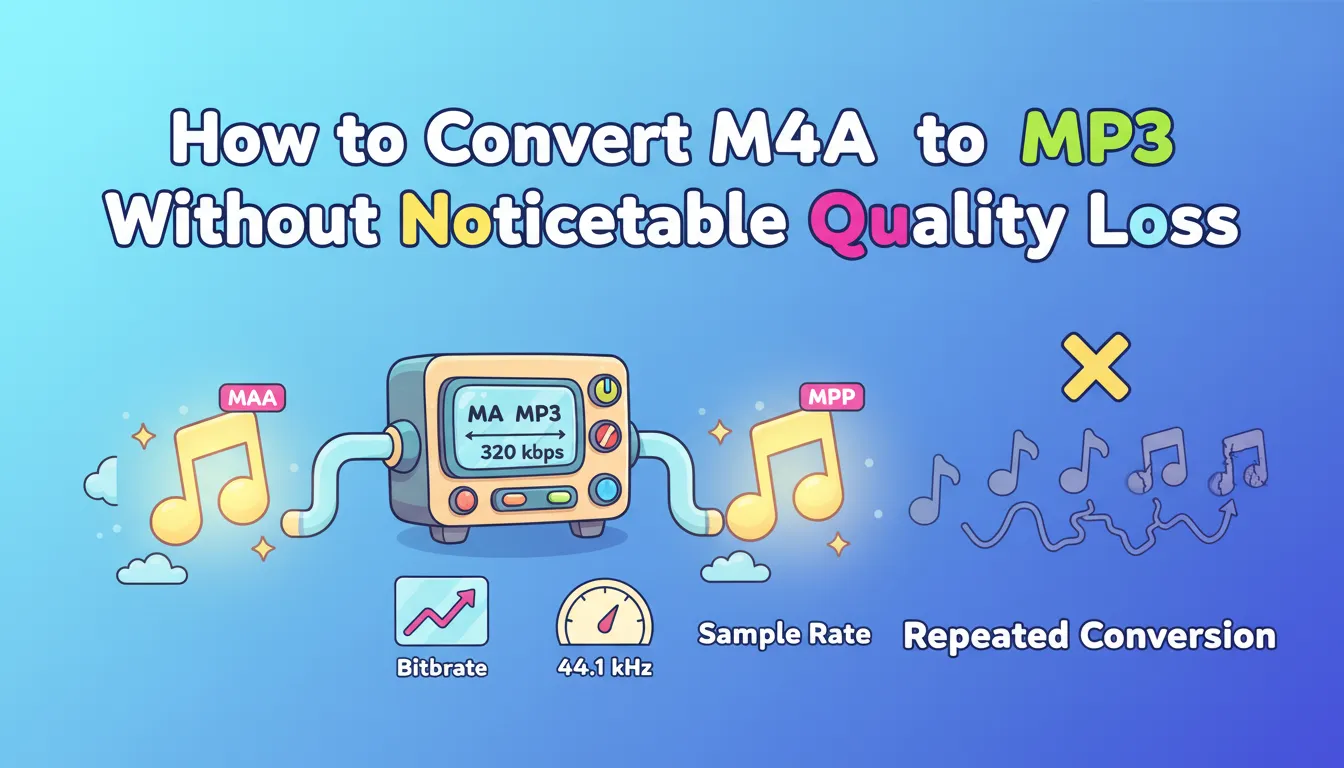
Start with the best original M4A file you have. A low-quality source file cannot become high-quality just because you convert it.
Next, choose MP3 as the output format and select a higher bitrate when possible. For music, podcasts, and client-facing content, 320 kbps is usually the safest choice. For speech-only files, 192 kbps or 256 kbps may be enough.
Keep the sample rate stable unless you have a specific reason to change it. Many audio files use 44.1 kHz, which is a common setting for music and general playback.
Finally, avoid repeated conversion. Do not convert M4A to MP3, then convert that MP3 again and again. Each lossy re-encode can add more artifacts.
Choosing the Right Online Audio Converter for Your Needs
The best tool depends on your workflow.
For quick personal tasks
Zamzar or Convertio may be enough. They are simple, fast, and easy to understand.
For more control
CloudConvert is stronger. It is a good fit if you care about output size and detailed quality settings.
For privacy-focused browser conversion
WaveSpeed is worth considering, especially for users who prefer local processing.
For beginners
Movavi Online is a comfortable starting point because the interface is simple and familiar.
For most regular users
AudioConvert is the most balanced choice. It combines broad format support, large-file uploads, batch conversion, output settings, and basic audio editing into a single online workflow. That makes it useful not only for one small M4A file, but also for recordings, clips, voice notes, podcast drafts, and multiple files.
Online vs Desktop Audio Converter: Which Should You Choose?
Use an online audio converter when you want speed, convenience, and no installation. It is ideal for voice memos, meeting recordings, podcast clips, short music files, online course materials, and social media assets.
Use desktop software when you need advanced editing, offline processing, waveform control, noise cleanup, mastering, or full music library management.
For most everyday M4A to MP3 tasks, online tools are more practical. You upload the file, choose MP3, adjust quality settings if needed, and download the result.
FAQ
What is the best audio converter for M4A to MP3?
AudioConvert is the best overall choice if you need online M4A to MP3 conversion with large file support, batch conversion, output settings, and basic editing tools.
Does converting M4A to MP3 reduce quality?
Technically, yes. M4A and MP3 are often compressed formats, so conversion usually involves re-encoding. However, with a high bitrate such as 256 kbps or 320 kbps, the quality loss is often not noticeable.
What bitrate should I use for M4A to MP3?
Use 320 kbps for the best MP3 quality. Use 256 kbps for a good balance between quality and file size. For speech-only recordings, 192 kbps may be enough.
Can I convert M4A to MP3 online without installing software?
Yes. Tools like AudioConvert, CloudConvert, Zamzar, Convertio, WaveSpeed, and Movavi Online let you convert M4A to MP3 directly in the browser.
Can I batch convert M4A files to MP3?
Yes, but it depends on the tool. AudioConvert supports batch conversion, which is helpful for multiple voice notes, songs, podcast clips, interviews, or meeting recordings.
Is M4A better than MP3?
M4A can be more efficient at similar bitrates, especially when encoded with AAC. MP3 is better for compatibility because it works almost everywhere.
Is an online audio converter safe?
It depends on the service. Use tools that clearly explain how files are handled. For sensitive files, privacy-focused local browser processing may be useful. For regular files, a trusted online converter is usually enough.
Conclusion
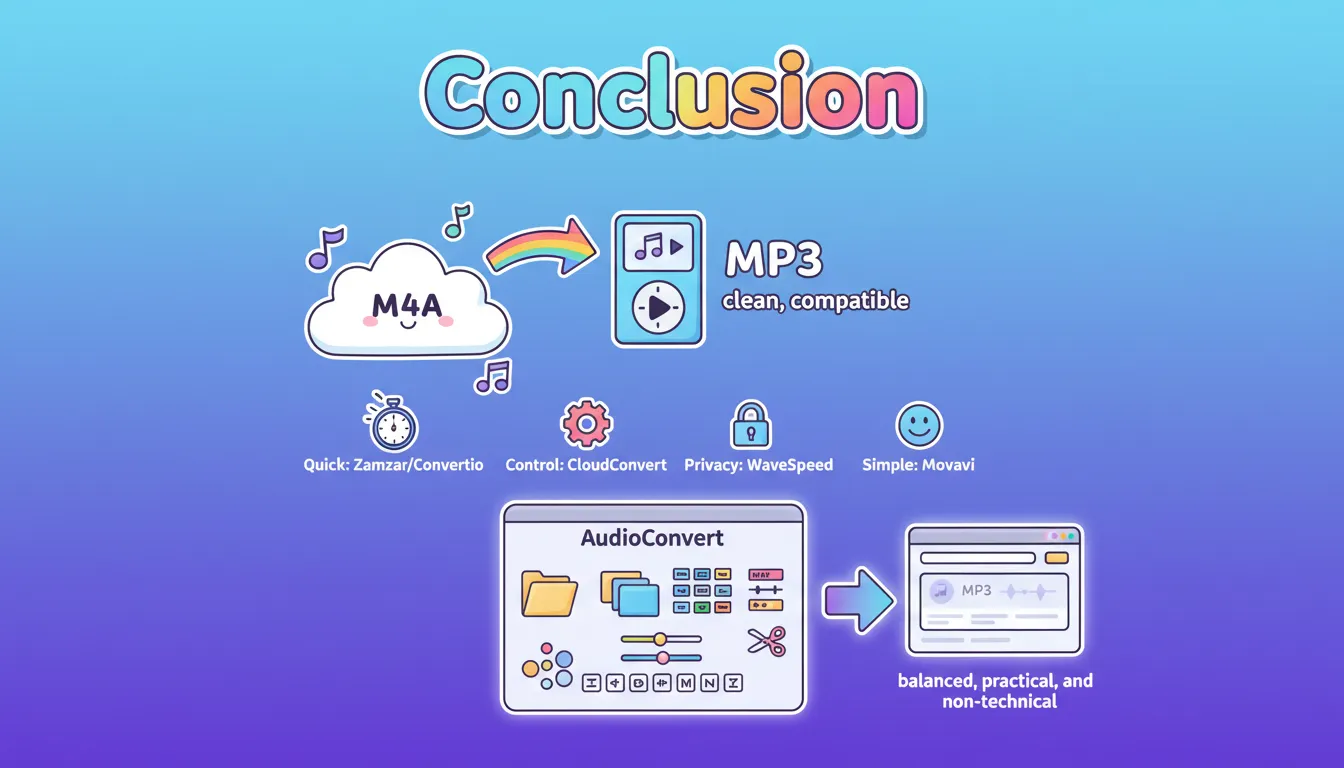
Converting M4A to MP3 is not about chasing a perfect “lossless” promise. It is about getting a clean, compatible MP3 file that sounds close enough to the original for real-world use.
If you only need a quick conversion, Zamzar or Convertio can work well. If you need more output control, CloudConvert is a strong option. If privacy matters, WaveSpeed is worth considering. If you want something simple and beginner-friendly, Movavi Online is easy to use.
If you want one free online audio converter for large files, batch conversion, broad format support, output settings, and simple audio editing, AudioConvert is the most balanced choice in this comparison. It gives you a practical browser-based workflow for turning M4A into MP3 without making the process feel technical, slow, or limited.